Windows Workstation Tooling
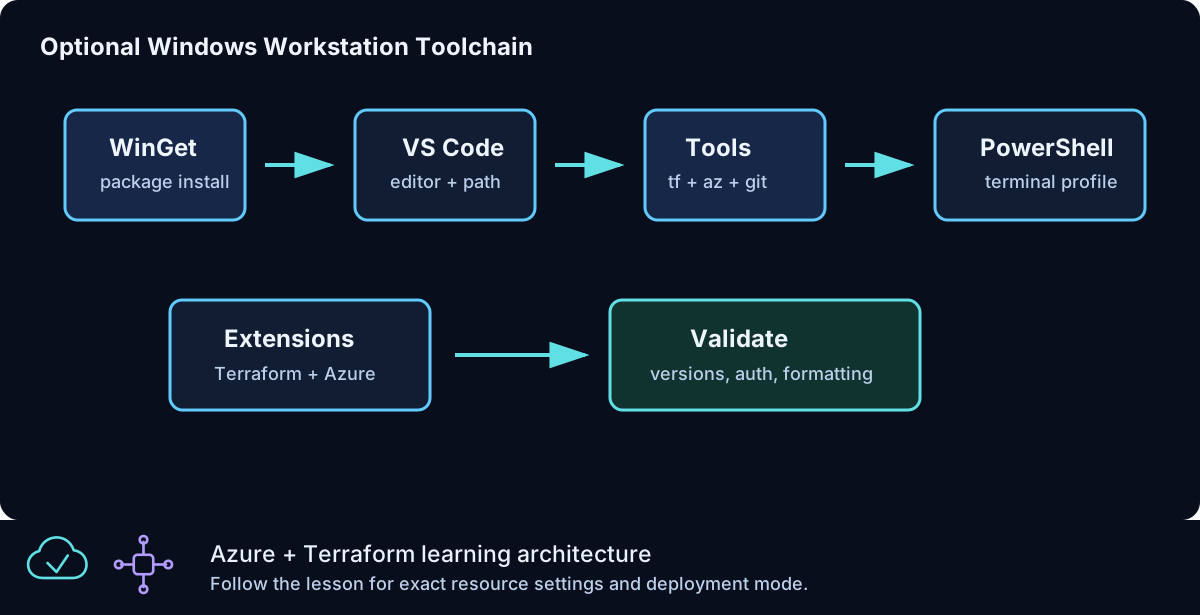
This guide supports the optional CLZ-090 setup lab. It explains how a Windows workstation should be prepared for Azure From Zero To Hero, why each tool exists, how the tools work together, and how to validate the setup before deploying Azure resources. It is intentionally more detailed than the lesson README because workstation issues can waste a lot of time if they are not diagnosed early.
The goal is a predictable local workflow: open the repository in VS Code, use PowerShell as the terminal, authenticate with Azure CLI, run Terraform from the correct lesson folder, validate formatting, review plans, and keep local values out of git.
Toolchain Overview
The recommended workstation has these core tools:
| Tool | Purpose |
|---|---|
| WinGet | Installs and upgrades Windows tools from a command line |
| PowerShell 7 | Runs the lab commands and helper scripts |
| VS Code | Edits Terraform, Markdown, PowerShell, and workflow files |
| Terraform CLI | Plans, validates, applies, and destroys infrastructure |
| Azure CLI | Authenticates to Azure and inspects subscriptions/resources |
| Git | Tracks changes and pushes to GitHub |
| Node.js/npm | Runs Markdown quality checks through markdownlint-cli2 |
| PSScriptAnalyzer | Checks PowerShell helper scripts |
| TFLint | Lints Terraform configuration beyond terraform validate |
| Trivy | Scans Terraform configuration for security risks |
You can run Terraform from another editor or terminal if you prefer, but the Azure From Zero To Hero documentation assumes PowerShell examples and VS Code-friendly navigation.
Why Setup Gets Its Own Optional Lab
Workstation setup is not infrastructure, but it affects every infrastructure lesson. A missing PATH entry, wrong Azure subscription, old terminal session, or missing VS Code extension can make a correct Terraform lesson feel broken.
The optional setup lab prevents these problems by validating the toolchain before the first Azure deployment. It is placed before CLZ-100 because it is preparatory. It does not replace the foundations lesson; it makes the foundations lesson easier to run.
Use the optional lab when:
| Situation | Why it helps |
|---|---|
| You are setting up a new Windows machine | Establishes all required tools |
| Terraform is not recognized | Checks install and PATH |
| Azure CLI signs in to the wrong account | Forces subscription review |
| VS Code terminal uses the wrong shell | Clarifies the terminal profile |
| Git is not configured | Catches repo workflow issues early |
| You want a repeatable checklist | Gives one place to validate setup |
WinGet
WinGet is the Windows Package Manager command-line client. It can install and upgrade common development tools. On modern Windows client systems, it is often available through App Installer. Some enterprise or server environments may not include it.
Validate it with:
If WinGet is available, it gives a consistent install path:
winget install --id Microsoft.PowerShell --source winget
winget install --id Git.Git --source winget
winget install --id Microsoft.VisualStudioCode --source winget
winget install --id Hashicorp.Terraform --source winget
winget install --exact --id Microsoft.AzureCLI
The --exact option is useful for Azure CLI because it ensures the official package ID is selected. If WinGet is blocked, use official installers instead.
PowerShell 7
PowerShell 7 is the preferred shell for Azure From Zero To Hero. Windows includes Windows PowerShell 5.1, but PowerShell 7 is the modern cross-platform version and has a better experience with many current tools.
Validate it with:
PowerShell 7 can run side by side with Windows PowerShell 5.1. That means installing PowerShell 7 should not remove the built-in Windows PowerShell. In VS Code, choose a PowerShell terminal profile that points to pwsh when possible.
Recommended habits:
| Habit | Why |
|---|---|
| Use PowerShell for lab commands | The repo examples use PowerShell syntax |
| Run commands from a lesson folder | Terraform state and paths stay local |
Use Get-Location before apply/destroy |
Prevents wrong-folder operations |
| Keep one terminal per active lesson | Reduces context confusion |
VS Code
VS Code is the recommended editor because it handles Markdown, Terraform, PowerShell, YAML, and integrated terminals well. It is also easy to open at the current repository path:
Validate the command:
If code is not recognized after installation, close and reopen the terminal. If it still fails, repair the VS Code installation or confirm that the command-line launcher is on PATH.
Recommended VS Code Extensions
Install the recommended extensions:
code --install-extension hashicorp.terraform
code --install-extension ms-vscode.powershell
code --install-extension ms-azuretools.vscode-azureresourcegroups
code --install-extension github.vscode-github-actions
code --install-extension DavidAnson.vscode-markdownlint
code --install-extension yzhang.markdown-all-in-one
| Extension | Value |
|---|---|
| HashiCorp Terraform | Terraform syntax, language support, and formatting help |
| PowerShell | Better .ps1 editing and terminal integration |
| Azure Resource Groups | Azure browsing from the editor |
| GitHub Actions | Workflow file editing and pipeline navigation |
| markdownlint | Markdown quality feedback while editing |
| Markdown All in One | Better documentation authoring |
Extensions do not replace command-line validation. Always trust terraform fmt, terraform validate, and GitHub Actions more than editor highlighting.
The repository tracks .vscode/extensions.json so VS Code can offer the same recommended extension set automatically. It also tracks a small .vscode/settings.json for shared Terraform, PowerShell, Markdown, line-ending, and whitespace defaults. User-specific editor files stay ignored.
Terraform CLI
Terraform CLI is the main infrastructure tool. It reads .tf files, initializes providers, validates configuration, creates plans, applies reviewed plans, and destroys managed resources.
Validate it:
Basic workflow:
terraform init
terraform fmt -check
terraform validate
terraform plan -out tfplan
terraform apply tfplan
terraform destroy
The optional setup lab has no Azure resources, but it still includes a valid Terraform configuration. That lets you test init, fmt, validate, and plan safely before running a real infrastructure lab.
Azure CLI
Azure CLI authenticates the workstation to Azure and lets you inspect account context.
Validate it:
If more than one subscription is available, select the intended subscription:
This matters because Terraform can use Azure CLI authentication. A correct Terraform file can still deploy to the wrong place if the active Azure CLI subscription is wrong or ambiguous.
Git
Git tracks changes in the repository and pushes updates to GitHub.
Validate it:
If git identity is not configured, set it:
Use your GitHub noreply address if you do not want to expose a personal email address in commits.
VS Code Terminal Setup
Open VS Code in the repository:
Then open the integrated terminal. Confirm:
If the terminal opens with an unexpected shell, change the default terminal profile. The important thing is consistency. The documentation is written for PowerShell, so using PowerShell removes translation errors.
Folder Discipline
Terraform uses the current folder as the root module. That means folder discipline is a safety practice.
Before plan, apply, or destroy, run:
You should see the lesson files such as versions.tf, providers.tf, variables.tf, and outputs.tf. If you are in the repository root, move into a lesson folder. If you are in the wrong lesson folder, stop before running Terraform.
Local Values
Each lesson provides terraform.tfvars.example. Copy it only when you need local overrides:
Then edit terraform.tfvars locally. Do not commit it. The repository ignores it because it may contain subscription IDs, admin CIDR ranges, or other workstation-specific values.
Authentication Checks
Authentication issues are common. Use this quick sequence:
If az account show fails, Terraform provider authentication may also fail. Fix Azure CLI sign-in first. If Azure CLI shows the wrong subscription, change it before planning.
Proxy And Enterprise Restrictions
Some workstations are behind enterprise proxy, firewall, or software restriction controls. Symptoms can include failed downloads, blocked extension installation, or provider initialization failures.
Check:
| Symptom | Possible cause |
|---|---|
| WinGet fails to download | Package source blocked |
| Terraform provider download fails | Registry access blocked |
| VS Code extension install fails | Marketplace access blocked |
| Azure CLI login fails | Browser or device login restricted |
In managed environments, use approved software distribution channels and ask the platform team which package sources are allowed.
Toolchain Validation Script
Run:
The script checks required commands, prints version output, lists recommended VS Code extensions when possible, and checks Azure CLI sign-in. It does not install software and does not create Azure resources.
If the script reports a required command missing, install or repair that tool before starting CLZ-100.
Version Strategy
The workstation should be modern, but it does not need to chase every release the moment it appears. Terraform, Azure CLI, VS Code, PowerShell, and Git all release updates on their own schedules. Updating everything at once right before a lab can create avoidable confusion because a behavior change may appear in more than one tool at the same time.
A practical strategy is:
| Tool | Update habit |
|---|---|
| Terraform CLI | Keep current enough to satisfy the required_version constraints in the lessons |
| Azure CLI | Update when authentication, provider, or Azure resource commands behave unexpectedly |
| VS Code | Keep stable channel updated through the normal updater |
| VS Code extensions | Update with VS Code unless an extension regression affects editing |
| PowerShell 7 | Keep on a supported version and review release notes before major upgrades |
| Git | Keep reasonably current, especially if GitHub authentication helpers change |
When a lab fails, avoid assuming the newest tool is always the answer. First confirm the folder, Azure account, subscription, variables, and Terraform initialization state. Upgrade tools when the error points toward missing command support, provider download problems, authentication behavior, or a known issue documented by the tool vendor.
For repeatable teaching environments, write down the working versions at the start of a cohort:
This gives you a baseline when comparing one student workstation with another. It also helps you explain whether a problem is caused by the lab files, a local install, or a newer tool version.
PATH And Command Discovery
Most workstation problems are not Terraform problems. They are command discovery problems. A tool can be installed correctly but still fail from the terminal if the command folder is not on PATH or if the terminal was opened before installation finished.
Use these checks:
Get-Command shows the executable that PowerShell will run. That is more useful than only checking a version number because it tells you which install path is active. If multiple copies of a tool exist, PowerShell uses the first matching command found through PATH.
If a newly installed command is missing, close every terminal window and open a new one. If it is still missing, check whether the installer completed successfully, whether the tool was installed for the current user or all users, and whether workstation policy blocks command-line launchers. Avoid manually editing global PATH unless you understand the existing entries. A broken PATH can affect many unrelated tools.
VS Code Workspace Habits
VS Code works best when the repository root is opened as the workspace. Open the root folder that contains README.md, wiki, scripts, and the lesson folders:
Opening a single file is fine for quick reading, but it weakens the lab experience. Folder mode gives you search across the curriculum, relative Markdown links, extension recommendations, shared workspace settings, integrated terminal context, and Git status in the same window.
Recommended layout:
| Area | Suggested use |
|---|---|
| Explorer | Browse lesson folders and wiki pages |
| Editor | Keep the lesson README.md and Terraform files open |
| Terminal | Run PowerShell, Azure CLI, and Terraform commands |
| Source Control | Review local edits before commit |
| Search | Find variables, outputs, resource names, and troubleshooting notes |
Use one VS Code window for the curriculum and one terminal tab per active lesson. When switching lessons, open a new terminal or run Set-Location deliberately. Wrong-folder execution is one of the easiest ways to create confusing Terraform state.
PowerShell Execution Policy
The helper scripts in scripts are PowerShell files. On some Windows systems, script execution policy may block local .ps1 files. Check the current policy:
For a personal lab workstation, many users choose a current-user policy that allows local scripts:
Use the policy required by your organization. The curriculum does not require lowering machine-wide policy. If you cannot change execution policy, you can still read the scripts and run the underlying commands manually. The script is a convenience, not a hidden dependency.
When running a script from the repository, use an explicit relative path:
From inside CLZ-090, use:
That habit makes it clear which script is being executed and prevents accidental reliance on a command with the same name elsewhere.
Azure Account Hygiene
Azure CLI sign-in is workstation-level context. Terraform can use that context when the Azure provider authenticates through Azure CLI. This is convenient, but it means the active account and subscription must be checked before every real deployment.
Use this sequence before infrastructure lessons:
az account show --query "{name:name, subscription:id, tenant:tenantId, user:user.name}" --output table
az account list --output table
If the wrong subscription is active, set it explicitly:
When you teach or repeat the lab across different environments, do not assume the last selected subscription is still correct. Browser sign-in, previous client work, and multiple tenants can change the context. Treat subscription confirmation like checking the current directory before terraform apply.
Local Files And Repository Cleanliness
The workstation will produce local files during Terraform work. Some are safe to commit, and some must stay local.
| File or folder | Commit? | Notes |
|---|---|---|
README.md |
Yes | Lesson documentation |
.tf files |
Yes | Terraform configuration |
terraform.tfvars.example |
Yes | Safe template values |
terraform.tfvars |
No | Local values and possible secrets |
.terraform/ |
No | Downloaded provider and module cache |
*.tfstate |
No | State can contain sensitive data |
tfplan files |
No | Plan files can contain environment details |
Before pushing changes, run:
Review the file list. If Terraform created local cache or state files, do not add them. The repository ignore rules should block common Terraform working files, but git status is still the final human checkpoint.
Teaching Checklist
If you are turning this into your own course, record a simple workstation readiness checklist at the start:
| Topic | Instructor check |
|---|---|
| Windows account | User can install tools or has approved install path |
| Terminal | PowerShell 7 opens from Start menu and VS Code |
| Editor | VS Code opens the repository root |
| Terraform | terraform version works in a new terminal |
| Azure | az account show returns the intended subscription |
| GitHub | git status works and remote access is configured |
| Script policy | Local helper scripts can run or manual fallback is documented |
This checklist is useful because it separates course problems from workstation problems. If a learner cannot run az account show, the next Terraform lesson will not behave predictably. Fixing that early keeps the curriculum focused on infrastructure instead of emergency setup repair.
Common Problems
| Problem | Cause | Fix |
|---|---|---|
| Command not recognized | Tool not installed or terminal not restarted | Reopen terminal or reinstall |
VS Code opens but code fails |
CLI launcher not on PATH |
Repair install or update PATH |
| Azure CLI shows wrong account | Previous browser session | Run az logout, then az login |
| Terraform init fails | Network or provider registry issue | Check connection and proxy rules |
| Git push fails | Remote/auth issue | Check git remote -v and GitHub auth |
| VS Code terminal uses old shell | Default profile not set | Select PowerShell terminal profile |
Validation Checklist
Before starting the main curriculum:
| Check | Command |
|---|---|
| PowerShell 7 | pwsh --version |
| Terraform | terraform version |
| Azure CLI | az version |
| Git | git --version |
| VS Code CLI | code --version |
| Azure sign-in | az account show |
| Repository opens | code . |
| Terraform validates optional lab | terraform validate from CLZ-090 |
If all checks pass, the workstation is ready for CLZ-100.
Official Documentation
Use official docs when an install path changes:
| Tool | Official documentation |
|---|---|
| WinGet | Windows Package Manager documentation |
| PowerShell | Microsoft PowerShell install docs |
| Azure CLI | Microsoft Azure CLI install docs |
| Terraform | HashiCorp Terraform install docs |
| VS Code | VS Code setup and command-line docs |
Summary
A clean workstation setup is not glamorous, but it makes every Terraform lesson smoother. The expected Azure From Zero To Hero setup is PowerShell 7, VS Code, Terraform CLI, Azure CLI, Git, and a few editor extensions. Validate the tools before deploying resources, keep local values out of git, confirm Azure subscription context, and run Terraform from the correct lesson folder. Once those habits are in place, the rest of the curriculum becomes much easier to follow.