Windows VM And VMSS Notes
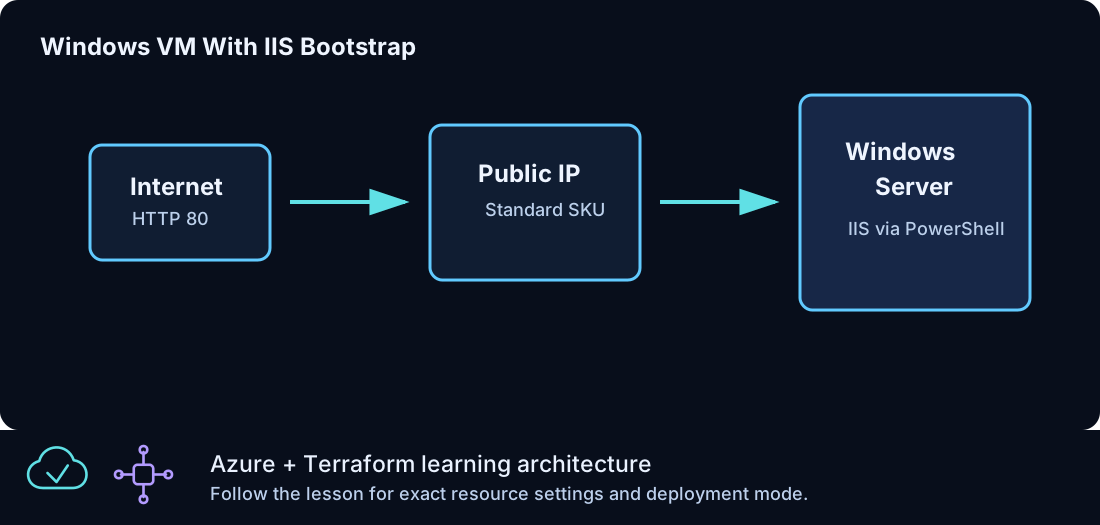
Windows compute is the main workload path in Azure From Zero To Hero. The curriculum starts with simple Windows Server VMs, adds IIS bootstrap, moves administration behind Azure Bastion, places multiple web nodes behind a Standard Load Balancer, and then introduces Windows VM Scale Sets for repeatable capacity.
This page explains the design decisions behind those labs. It covers image selection, sizing, credentials, networking, IIS automation, RDP access, VMSS behavior, load-balancing, autoscale, and common validation steps. Use it when a lesson creates a Windows VM or Windows VMSS and you want more context than the lesson README provides.
Standard Windows Image
Azure From Zero To Hero uses Windows Server 2022 Azure Edition by default.
| Field | Value |
|---|---|
| Publisher | MicrosoftWindowsServer |
| Offer | WindowsServer |
| SKU | 2022-datacenter-azure-edition |
| Version | latest |
The image is modern, widely available in Azure, and suitable for IIS examples. The latest version keeps the lab from pinning to an aging image build. For highly controlled environments, pinning a specific version can improve repeatability. For a learning lab, latest is acceptable because the goal is to learn Terraform and Azure resource relationships, not to manage a golden image pipeline.
The Terraform block appears in VM and VMSS resources:
source_image_reference {
  publisher = "MicrosoftWindowsServer"
  offer     = "WindowsServer"
  sku       = "2022-datacenter-azure-edition"
  version   = "latest"
}
If a region does not support this SKU, choose another Windows Server 2022 SKU available in that region and update the lesson file intentionally.
VM Size
Most VM lessons use Standard_B2s. It is a reasonable learning size for Windows Server because it has enough memory for basic IIS and RDP validation while staying cost-conscious.
Sizing is a tradeoff:
| Size goal | Result |
|---|---|
| Smaller size | Lower cost, but slower provisioning and limited headroom |
| Larger size | Faster response, but higher cost |
| Same size across lessons | Predictable examples and fewer moving parts |
For quota issues, either lower the instance count or select another size available in the region. Always review the plan after changing size because replacement may be required.
Administrator Credentials
Windows VMs require an administrator username and password in these labs. Azure From Zero To Hero generates the password with the random_password provider instead of committing a real password.
resource "random_password" "windows_admin" {
  length           = 20
  special          = true
  min_upper        = 2
  min_lower        = 2
  min_numeric      = 2
  min_special      = 2
  override_special = "!#$%&*()-_=+[]{}<>:?"
}
The generated password is used by the Windows VM or VMSS:
Sensitive outputs reduce casual exposure:
Remember that sensitive values still exist in Terraform state. Sensitive output only changes terminal display behavior. The state guide explains why state storage matters once credentials are involved.
Computer Name Constraints
Azure resource names and Windows computer names are not the same. A VM resource name can be longer than the Windows computer name. Windows computer names have stricter length and character expectations, so the lessons use compact generated names such as clz190 or clz2601.
When you customize names, keep these rules in mind:
| Name type | Recommendation |
|---|---|
| Azure resource name | Include prefix, environment, lesson code, and role |
| Windows computer name | Keep short, readable, and unique |
| NIC name | Match the VM role and index |
| Public IP name | Match the resource it exposes |
If a Windows VM name is rejected, check the computer_name argument before changing the Azure resource name.
Public Access In Early Lessons
The first Windows VM lessons may use a public IP for direct validation. This is a teaching step, not the final operating model. The goal is to make the relationship between VM, NIC, public IP, and NSG visible.
Direct public access requires:
| Resource | Requirement |
|---|---|
| Public IP | Attached to the NIC IP configuration |
| NSG rule | Allows the required port from a narrow source |
| VM | Listening on the service port |
| Local network | Allows outbound traffic from your workstation |
For RDP examples, the admin_cidr variable should be set to your trusted source range. Avoid leaving broad admin access open after testing.
Azure Bastion Access
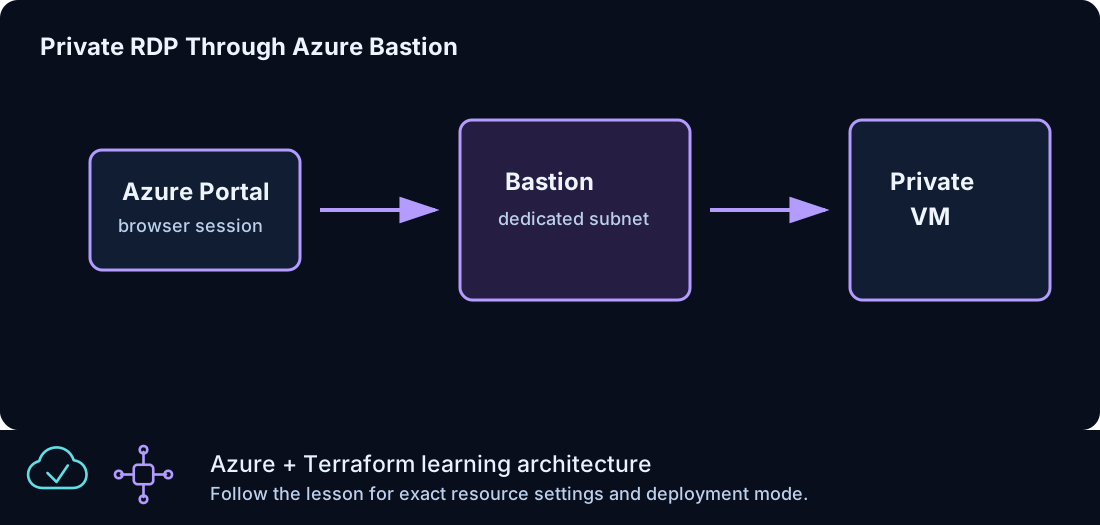
Azure Bastion is introduced to remove public IPs from Windows VMs. It provides browser-based RDP through the Azure portal while the VM remains private.
Bastion requires:
| Component | Detail |
|---|---|
| Dedicated subnet | Must be named AzureBastionSubnet |
| Public IP | Standard SKU public endpoint for the managed service |
| Bastion host | Azure-managed service in the resource group |
| Private VM | Target VM with private address only |
After Bastion is introduced, prefer private Windows VMs. Public IPs remain useful for Load Balancer frontends and specific teaching examples, but not for routine administration.
IIS Bootstrap
IIS is the standard validation workload in Azure From Zero To Hero. It gives a simple HTTP endpoint that can validate VM provisioning, PowerShell extension execution, NSG behavior, Load Balancer probes, and VMSS instance readiness.
The common extension is CustomScriptExtension:
resource "azurerm_virtual_machine_extension" "iis" {
  name                       = "install-iis"
  virtual_machine_id         = azurerm_windows_virtual_machine.web.id
  publisher                  = "Microsoft.Compute"
  type                       = "CustomScriptExtension"
  type_handler_version       = "1.10"
  auto_upgrade_minor_version = true

  settings = jsonencode({
    commandToExecute = "powershell -ExecutionPolicy Unrestricted -Command \"Install-WindowsFeature -Name Web-Server -IncludeManagementTools\""
  })
}
The lesson examples also write a simple page to C:\inetpub\wwwroot\index.html. That page proves the extension ran and helps identify which backend served the request.
Extension Timing
VM extensions run after the VM is created. That means a VM can exist before IIS is ready. In load-balancer lessons, health probes may fail until the extension finishes. This is normal during deployment.
If HTTP validation fails immediately after apply:
- Wait a few minutes.
- Check the VM extension status in Azure.
- Confirm the NSG allows port 80.
- Confirm the public IP or load balancer output is correct.
- Confirm the VM is running.
Do not assume the network is wrong until you check extension status. Bootstrap timing is one of the most common causes of early HTTP failures.
Network Interface Pattern
A Windows VM uses one or more NICs. The lessons use a single NIC per VM.
The NIC contains:
| Field | Meaning |
|---|---|
subnet_id |
Places the VM in the selected subnet |
private_ip_address_allocation |
Dynamic or static private IP |
public_ip_address_id |
Optional public IP association |
VM resources then reference the NIC:
This relationship matters when troubleshooting. If the VM exists but is unreachable, inspect the NIC's subnet, private IP, public IP association, NSG, and backend pool membership.
Load-Balanced Windows VMs
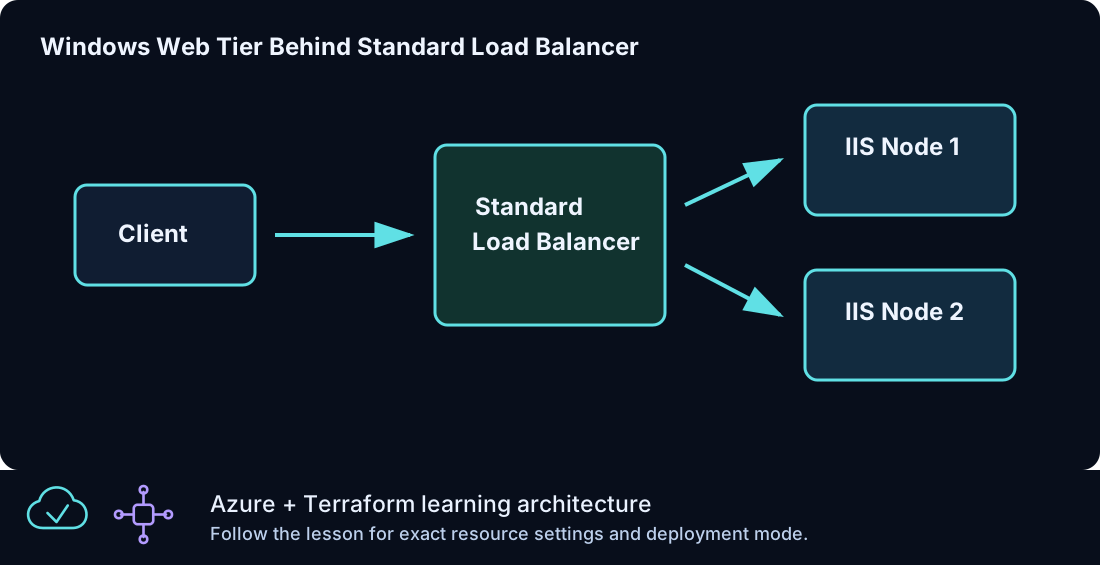
The load-balancer lessons create multiple Windows IIS nodes and distribute traffic through a Standard Load Balancer.
The pattern includes:
| Resource | Role |
|---|---|
| Public IP | Frontend address |
| Standard Load Balancer | Layer 4 distribution |
| Backend pool | Target collection |
| Probe | Determines backend health |
| Rule | Maps frontend port 80 to backend port 80 |
| Windows VMs | IIS backend nodes |
| Extension | Installs IIS and writes validation page |
The backend pool association can be on individual NICs or on the VMSS network profile. Individual VM lessons use NIC associations. VMSS lessons put the backend pool in the scale set network configuration.
NAT Rules For Administration
One lesson shows a controlled Load Balancer NAT rule. A NAT rule maps a unique frontend port to a backend port on one machine. For example, frontend port 50001 can map to backend port 3389 on the first VM.
NAT rules are useful for understanding the mechanics of port translation, but they are not the preferred long-term admin pattern for this curriculum. Once Bastion is available, use Bastion for private RDP.
Count-Based Windows VMs
The count lesson creates multiple similar Windows VMs from a number. It is useful for simple repeated resources:
resource "azurerm_windows_virtual_machine" "web" {
  count = var.instance_count
  name  = "${local.prefix}-count-${count.index + 1}-winvm"
}
Use count when resources are interchangeable. The index becomes part of the address, such as azurerm_windows_virtual_machine.web[0]. If you remove an item from the middle of a counted list, addresses can shift. That is why for_each is often better for named resources.
For-Each Windows VMs
The for_each lesson creates named Windows VMs from a typed map. Each key is
stable identity and each value carries lesson-specific configuration:
variable "vm_definitions" {
  type = map(object({
    vm_size = string
    role    = string
  }))

  default = {
    web = {
      vm_size = "Standard_B2s"
      role    = "web"
    }
  }
}
The resource address includes the key, such as
azurerm_windows_virtual_machine.web["web"]. Keys are stable, while the object
values drive VM size and role tags.
Use for_each when each VM has identity. Use count when instances are truly interchangeable.
Windows VM Scale Sets
A VM Scale Set, or VMSS, creates and manages a group of similar VM instances. It is the natural next step after individual VMs.
The Azure From Zero To Hero VMSS pattern includes:
| Component | Purpose |
|---|---|
| Windows VMSS | Manages instance count and image |
| Load Balancer | Public HTTP entry point |
| Backend pool | Connects VMSS instances to the load balancer |
| VMSS extension | Installs IIS on each instance |
| Autoscale setting | Optional CPU-based scaling |
VMSS is better than hand-built repeated VMs when the instances are meant to be identical and managed as one group.
VMSS Upgrade Mode
The lessons use upgrade_mode = "Manual" for clarity. Manual mode makes change behavior easier to understand during learning. In production-style environments, upgrade strategy deserves its own design decision because it affects rollout speed, safety, and operational control.
When you change a VMSS model, existing instances may not immediately reflect the new model depending on upgrade mode. Always check instance model status and extension state during validation.
Autoscale
The autoscale lesson attaches CPU-based rules to the VMSS. The rules define minimum, maximum, and default capacity, then scale out or in based on average CPU over a time window.
Autoscale configuration has two halves:
| Part | Meaning |
|---|---|
| Metric trigger | The condition to watch |
| Scale action | What to do when the condition is true |
Example logic:
| Condition | Action |
|---|---|
| CPU greater than 70 percent | Increase by 1 |
| CPU less than 25 percent | Decrease by 1 |
Autoscale is not instant. It uses time windows and cooldowns to prevent constant changes. For a lab, you usually validate that the autoscale setting exists rather than forcing a real scale event.
Outputs For Windows Lessons
Windows lessons expose outputs such as:
| Output | Use |
|---|---|
windows_vm_public_ip |
Direct VM validation |
iis_url |
HTTP validation |
load_balancer_url |
Load-balanced web validation |
bastion_name |
Portal lookup |
windows_admin_password |
Sensitive credential retrieval |
Use terraform output after apply. For sensitive values, use:
Handle the displayed value carefully and avoid storing it in notes or screenshots.
Validation Patterns
For a Windows VM lesson, validate in this order:
- Resource group exists.
- VM is running.
- NIC is in the expected subnet.
- NSG rules match the lesson.
- Extension succeeded if IIS is expected.
- Output URL or IP responds.
- Tags are present.
For a VMSS lesson:
- VMSS exists.
- Instance count matches
instance_count. - Extension exists on the VMSS model.
- Load Balancer has backend pool and probe.
- HTTP URL responds after instances are healthy.
- Autoscale setting exists when expected.
Cost Control
Windows compute resources cost more than simple resource groups or DNS zones. Keep these habits:
| Habit | Reason |
|---|---|
| Use the default instance count unless testing scale | Limits cost |
| Destroy after each lesson | Prevents idle compute spend |
| Avoid keeping Bastion running unnecessarily | Bastion has ongoing cost |
| Review plans before apply | Prevents accidental extra resources |
| Use tags for cleanup checks | Finds leftovers quickly |
The curriculum is designed for short-lived lab deployments. Treat each apply as temporary unless you are intentionally building on its outputs.
Common Failure Modes
| Symptom | Likely cause | First check |
|---|---|---|
| VM exists but RDP fails | NSG or public/private access model | NSG rules and Bastion setup |
| HTTP fails after apply | IIS extension not complete | VM extension status |
| Load Balancer public IP responds inconsistently | Backend probe or IIS readiness | Backend health and extension state |
| VMSS has fewer instances than expected | Quota or autoscale constraints | VMSS instance view |
| Password output hidden | Sensitive output behavior | Request the specific output |
| VM name rejected | Computer name constraint | computer_name value |
Design Progression
The Windows compute path deliberately moves through stages:
- Single Windows VM.
- IIS bootstrap on one VM.
- Private RDP through Bastion.
- Multiple Windows VMs behind Load Balancer.
- NAT rule mechanics.
- Repetition with
count. - Named repetition with
for_each. - VMSS manual scaling.
- VMSS autoscaling.
- Capstone module composition.
Each stage teaches one new layer. If a later lesson feels complex, go back to the stage where that layer was introduced.
Summary
Windows compute in Azure From Zero To Hero is more than VM creation. It is a full path from basic provisioning to operational architecture: secure credentials, predictable names, controlled access, PowerShell bootstrap, IIS validation, load-balanced delivery, scale sets, autoscale, and final module composition. The goal is to make every resource relationship visible before it becomes part of the capstone.