State Backend And Locking
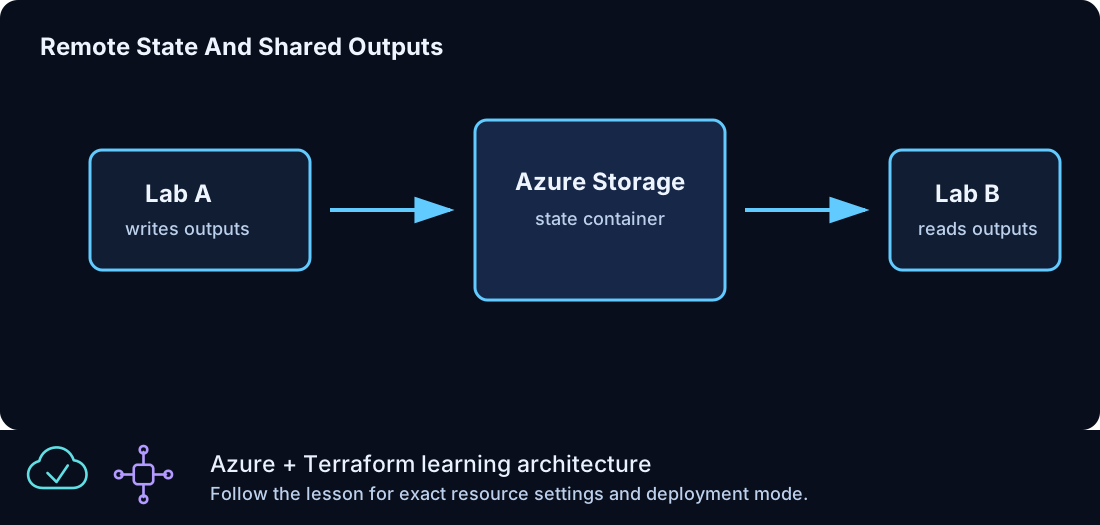
Terraform state is the operational record of what Terraform manages. It maps resource addresses in configuration to real Azure resource IDs, stores selected attributes, tracks dependencies, and supports future plans. State is the reason Terraform can look at a resource block such as azurerm_resource_group.lab and know which Azure resource group belongs to it.
This page explains how state works in Azure From Zero To Hero, why local state is used early, why Azure Storage is introduced later, how remote-state outputs are consumed, what should never be committed, and how to avoid common state mistakes.
What State Does
Terraform state answers a simple but critical question: "Which real object is represented by this resource address?"
For example:
| Terraform address | Azure object |
|---|---|
azurerm_resource_group.lab |
/subscriptions/.../resourceGroups/clz-dev-clz100-rg |
azurerm_virtual_network.main |
/subscriptions/.../virtualNetworks/clz-dev-clz170-vnet |
azurerm_windows_virtual_machine.web |
/subscriptions/.../virtualMachines/clz-dev-clz190-web-winvm |
Without state, Terraform would have to rediscover every relationship on every run. State makes planning faster and more precise. It also lets Terraform know whether a resource should be updated, replaced, or destroyed.
State is not a backup of your architecture. It is not a design document. It is not a file to edit by hand. It is a runtime data structure that Terraform owns.
Configuration, State, And Azure
Terraform compares three things:
| Layer | Owner | Example |
|---|---|---|
| Configuration | You | .tf files say a resource group should exist |
| State | Terraform | State says which Azure resource group is tracked |
| Azure provider data | Azure | Azure reports current properties |
The plan is the difference between the desired configuration and the current reality as Terraform understands it. State connects those views.
If configuration changes, Terraform may update Azure. If Azure changes outside Terraform, Terraform may detect drift. If state is missing or damaged, Terraform may not know that an existing Azure object belongs to the configuration.
Local State In Early Lessons
Early Azure From Zero To Hero lessons use local state. Local state keeps the learning loop transparent because the state file is created in the lesson folder and the relationship between commands and files is easy to inspect.
Local state is useful for:
| Use case | Why it fits |
|---|---|
| Individual practice | One user controls the folder |
| Short-lived labs | Resources are destroyed after the lesson |
| Early learning | The state file location is obvious |
| No shared workflow | There is no team concurrency problem |
Local state is not ideal for shared work. It can be lost, overwritten, or accidentally committed. That is why remote state appears later in the curriculum.
State Files To Keep Out Of Git
The repository .gitignore excludes state and plan artifacts:
The state file can contain resource IDs, generated passwords, connection strings, endpoints, and service configuration details. Even when Terraform marks an output as sensitive, the underlying value can still exist in state. Never commit state files.
terraform.tfvars is also ignored because it can contain local subscription IDs, source CIDR values, or real input values. The repository includes terraform.tfvars.example for safe examples.
Sensitive Values In State
Sensitive output does not mean encrypted state. It means Terraform hides the value in normal terminal output.
Example:
The password is still part of Terraform state because Terraform needs it to manage the resource. That is one reason Key Vault is introduced later. Even when a secret is stored in Key Vault, Terraform may still know the value that created it. Protect state accordingly.
The .terraform Directory
The .terraform directory is local working data. It can contain downloaded providers, modules, backend metadata, and initialization artifacts. It should not be committed. It can be deleted and recreated with terraform init.
If a folder behaves strangely after provider or backend changes, removing .terraform and running terraform init can help. Do not delete .terraform while Terraform is actively running.
Dependency Lock Files
Terraform creates .terraform.lock.hcl to record exact provider selections and
checksums. Azure From Zero To Hero commits one lock file for every lesson root
and tested shared module. Each lock includes Windows AMD64 and Linux AMD64
checksums so local Windows work and GitHub Actions resolve the same provider
versions.
Do not hand-edit or delete the tracked lock files during normal work. The local
and CI gates use terraform init -lockfile=readonly; an unexpected provider
selection therefore fails validation instead of silently rewriting the lock.
When maintainers intentionally update a provider, they regenerate and review
the affected locks for both platforms as part of that change.
Remote State In Azure Storage
The remote-state lesson creates an Azure Storage account and a private container. That storage container can hold Terraform state files. Azure Storage is a common backend choice because it is durable, supports access control, and integrates well with Azure identity patterns.
The core resources are:
| Resource | Purpose |
|---|---|
| Storage account | Stores backend data |
| Storage container | Holds state blobs |
| State key | Names one state file inside the container |
| Resource group | Contains the backend storage resources |
The storage lesson outputs values that can be used to configure a backend:
| Output | Use |
|---|---|
state_storage_account_name |
Backend storage account |
state_container_name |
Backend container |
resource_group_name |
Backend resource group |
backend_configuration |
Typed resource group, account, container, and clz310.tfstate key for migration/consumer setup |
Backend Configuration Shape
A backend block and its separate runtime configuration look like this:
resource_group_name  = "<CLZ-310 output>"
storage_account_name = "<CLZ-310 output>"
container_name       = "tfstate"
key                  = "clz310.tfstate"
use_azuread_auth     = true
CLZ-310 bootstraps locally because a backend cannot create itself. After apply,
copy backend.tf.example and backend.hcl.example to their ignored runtime
names, fill in backend_configuration, and run terraform init -migrate-state.
State Keys
The backend key is the path of the state file inside the container. Use a separate key per environment and project.
Good examples:
| Key | Use |
|---|---|
clz-dev.tfstate |
Shared development lab state |
clz-test.tfstate |
Test environment state |
network-dev.tfstate |
Network foundation state |
capstone-dev.tfstate |
Capstone state |
Avoid reusing the same key for unrelated deployments. If two folders write to the same state key, they can overwrite each other's understanding of managed resources.
State Locking
State locking prevents two Terraform runs from writing the same state at the same time. Concurrent writes are dangerous because one run can overwrite changes from another. Azure Storage backends support locking behavior through blob leases.
Local state does not give the same shared locking experience. That is acceptable for one person learning locally, but it is not the right model for collaborative work.
Locking is especially important when a GitHub Actions workflow runs Terraform. A workflow and a local terminal should not apply to the same backend at the same time.
Remote State Data Source
The cross-environment state lesson introduces terraform_remote_state. This data source reads outputs from another state file.
Example:
data "terraform_remote_state" "shared" {
  backend = "azurerm"

  config = {
    resource_group_name  = var.remote_state.resource_group_name
    storage_account_name = var.remote_state.storage_account_name
    container_name       = var.remote_state.container_name
    key                  = var.remote_state.key
    use_azuread_auth     = true
  }
}
This pattern is useful when one layer needs values from another layer. For example, a compute layer may need a VNet ID from a network layer. The producing layer exposes the value as an output. The consuming layer reads that output from remote state.
Benefits Of Remote State Outputs
Remote state outputs can reduce copy-paste between layers. They make dependencies explicit and repeatable.
| Without remote state | With remote state |
|---|---|
| Manually copy VNet IDs | Read output from network state |
| Values drift between notes and Azure | Values come from Terraform state |
| Harder to rebuild environments | Layer interfaces are declared |
| More local mistakes | Fewer manual values |
Remote state is powerful, but it also creates coupling. A consuming layer depends on the producing layer's outputs. Rename or remove an output carefully.
When Not To Use Remote State
Do not use remote state for every value. Some values are better passed as variables or discovered through data sources.
Avoid remote state when:
| Situation | Better option |
|---|---|
| The value is static and simple | Variable |
| Azure can look up the resource by name | Provider data source |
| The dependency should be loose | Explicit input |
| The value is a secret | Key Vault or secure pipeline secret handling |
Remote state is best for stable infrastructure interface outputs, not for every runtime detail.
Moving From Local To Remote State
To move an existing lesson from local state to remote state, the general flow is:
- Create the backend storage.
- Add a backend block or backend config file.
- Run
terraform init. - Approve the migration prompt if Terraform detects local state.
- Run
terraform planto confirm no unexpected changes.
Do not manually copy state files unless you understand the backend format and migration process. Let Terraform perform the migration when possible.
Destroy Behavior
terraform destroy removes resources tracked by the current state. That means destroy depends on the correct folder and correct backend.
Before destroy, check:
| Check | Why |
|---|---|
| Current folder | Confirms you are using the intended configuration |
| Workspace or backend key | Confirms the intended state file |
| Plan summary | Confirms the resources to destroy |
| Outputs needed later | Save needed values before removal |
Destroying the backend storage account that holds active remote state is a special case. If other environments use that storage account, do not destroy it casually. The remote-state lesson creates backend infrastructure, so treat it as shared if later lessons depend on it.
Import And State Repair
Terraform can import existing Azure resources into state, but import is not part of the normal Azure From Zero To Hero path. Import is useful when a resource exists and you want Terraform to manage it. It requires matching configuration and careful review.
For beginner and intermediate lab work, it is usually better to destroy and recreate short-lived lab resources than to practice state repair. Use import later when you have a real reason.
Drift Handling
Drift happens when Azure resources change outside Terraform. The next plan can show updates that restore the configuration or reveal changes you need to adopt.
Drift response options:
| Option | Use when |
|---|---|
| Reapply Terraform | The manual change was accidental |
| Update configuration | The manual change is the new desired design |
| Recreate resources | The lab is disposable and cleanup is easier |
| Investigate first | The plan includes unexpected replacement |
Do not apply drift changes blindly. Read the plan and decide whether Terraform or the manual change is the source of truth.
Workspace Note
Terraform workspaces can separate state under one configuration, but Azure From Zero To Hero does not rely on workspaces in the core path. The curriculum uses folder boundaries, environment variables, and state keys to keep the model explicit.
Workspaces can be useful, but they also add another hidden selector. A hidden selector can confuse lab users who expect one folder to mean one state. For this repository, explicit state keys are easier to teach.
GitHub Actions And State
The GitHub Actions lesson validates Terraform with terraform init -backend=false. That means the validation workflow checks syntax and provider schemas without connecting to a real backend. This is intentional. It lets the repository validate safely without creating Azure resources or requiring backend secrets.
If you later add plan or apply workflows, state handling becomes a pipeline design topic. You need secure authentication, a remote backend, concurrency control, and a clear approval model.
State Checklist
Before applying:
| Question | Good answer |
|---|---|
| Am I in the correct lesson folder? | Yes |
Did terraform init use the backend I expect? |
Yes |
Did terraform validate pass? |
Yes |
| Does the plan affect only expected resources? | Yes |
| Are sensitive values kept out of committed files? | Yes |
Before committing:
| Check | Command idea |
|---|---|
| No state files | Search for *.tfstate |
| No local tfvars | Search for terraform.tfvars |
| No provider cache | Search for .terraform |
| No plan file | Search for *.tfplan |
Common State Mistakes
| Mistake | Impact | Fix |
|---|---|---|
| Commit state | Exposes operational data | Remove from git history if already pushed |
| Reuse state key | Mixes unrelated resources | Use unique keys |
| Destroy from wrong folder | Can remove wrong resources | Check folder and plan |
| Delete backend storage too early | Loses shared state | Confirm dependencies first |
| Edit state by hand | Breaks tracking | Use Terraform commands |
| Ignore drift | Surprises accumulate | Review plans regularly |
Summary
State is Terraform's memory. Treat it as operational data that deserves protection and deliberate handling. Azure From Zero To Hero starts with local state so the learning loop is visible, then introduces Azure Storage remote state when shared outputs and safer collaboration become relevant. The most important habits are simple: do not commit state, do not edit state manually, use clear backend keys, review plans before apply or destroy, and protect any state that contains sensitive values.